Homepage Changes#
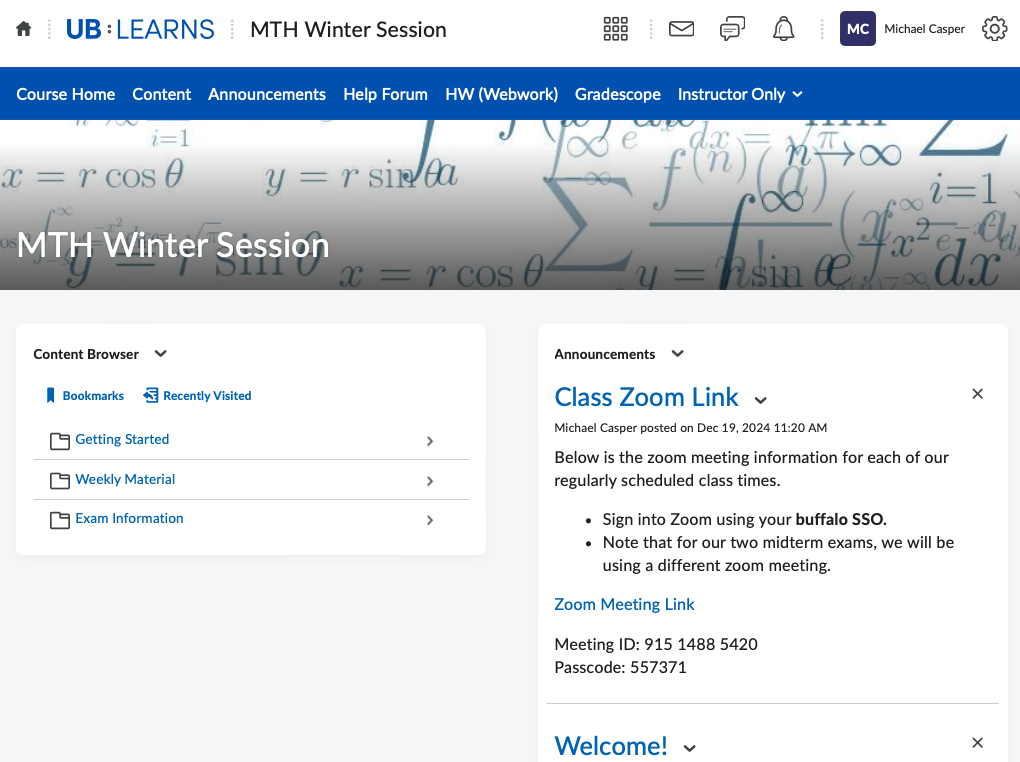
The homepage is the first page students will see when they enter your course on UB Learns. Brightspace uses widgets to customize this page. In my opinion, the default comes with too much stuff, but you do have the option to create a new custom homepage yourself.
How-to#
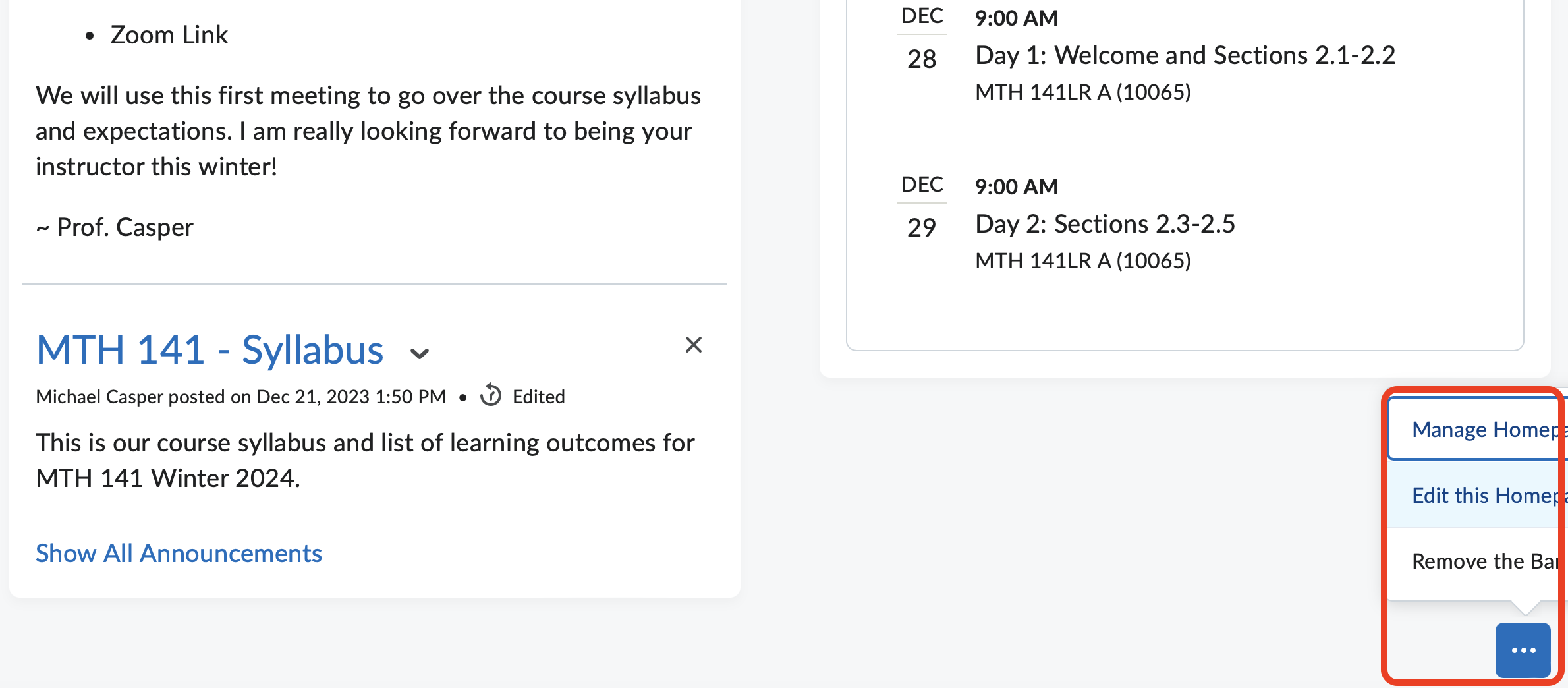
Scroll to the bottom of the current homepage.
Hover over the 3 dots in the lower right corner.
Select Manage Homepage
Create Homepage
You can title this “Summer 2025 - Homepage” or whatever you want.
Layout: I prefer the “Two Equal Panels” layout
Add Content Browser widget to the left panel
Add Announcements widget to the right panel.
Leave the top and bottom panels blank.
Save
Change Active Homepage to the one you just created and click apply.
Once the course is underway, I like to post an annoucement each week, containing a link to that week’s course page in the Weekly Material content seciton. This way student’s don’t have to click too many times to get where they need to be.
Sample Pictures#
Below are some pictures of my homepage layout for UB Learns Winter 2025.