
Exam Delivery#
Exams and Quizzes will be delivered through UBLearns. In the 2025 Sample Brightspace package, there is a Practice Quiz assessment that you can duplicate for all of your other proctored quizzes and exams.
Practice Quiz Package: This includes the practice quiz that you can duplicate in UB Learns.
What to Change?#
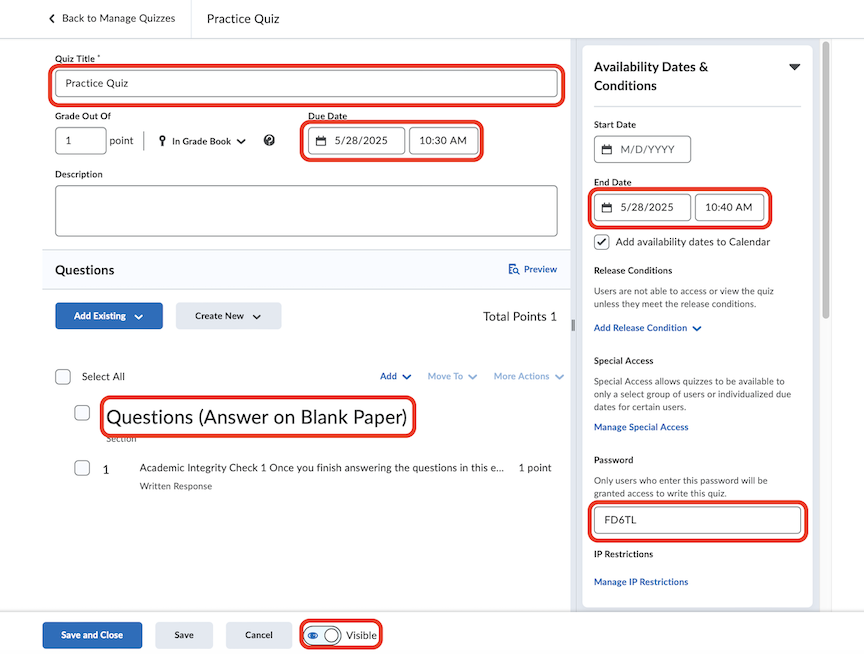
Once you copy this practice quiz, you just need to make a few changes to the settings and questions.
Quiz Title: Change it from Practice Quiz to whatever you want: Quiz #1, Midterm Exam #2, etc.
Due Date: Change this date and time to whenever your assessment is going to end.
End Date: Change this date and time to 10 minutes after the end time of your assessment. This will give students a little extra time to upload their Academic Integrity Check 1 video.
Password: Change the password for each assessment. You should use a short 5-7 character password consisting of capital letters and numbers.
Visibility: A few hours before the start of the exam, toggle the visibility to on. This way students don’t have too much time to try and guess the password.
Once you have created the actual questions using LaTeX, Word, etc., you can upload them by:
Click on “Questions (Answer on Blank Paper)”.
Copy and paste a screenshot of your exam questions.
You can include as many pictures here as you need, pasted in sequential order.
Color Coding Your Exam#
Changing the background color of your original document is strongly recommended. The default pink color you see in the practice quiz has hex code: ffb0ff. This is a good color to use in your document for a few reasons:
It shows up well on their computer screen in the Zoom Proctoring Sessions.
It reflects well off the students’ faces. Changes in this reflection can help identify academic integrity violations.
To change the background color of your document when when using LaTeX:
In the Preamble:
\usepackage{xcolor}
\definecolor{Mycolor}{HTML}{ffb0ff}
In the Body of the Document:
\pagecolor{Mycolor}