Importing Sets#
Next you will need to install the necessary problem and set files into your course using the WeBWorK File Manager. There are two types of files that you will be installing:
Problem files: These use a .pg extension with each file containing one individual question.
Set files: These use a .def extension with each of these producing a collection of indiviual problems all related to a single topic.
Problem Package#
Course |
Link |
|---|---|
All courses |
Set Packages#
Course |
Link |
|---|---|
121 |
|
122 |
|
131 |
|
141 |
|
142 |
|
241 |
Install the Problem and Set Files#
You can upload the tar.gz packages (linked above) using the WeBWorK File Manager. Note that this step will only upload the necessary files into your course, but will not make them accessible to your students - we’ll take care of that in a later step.
Download the problem package to your computer.
Sign into your webwork course.
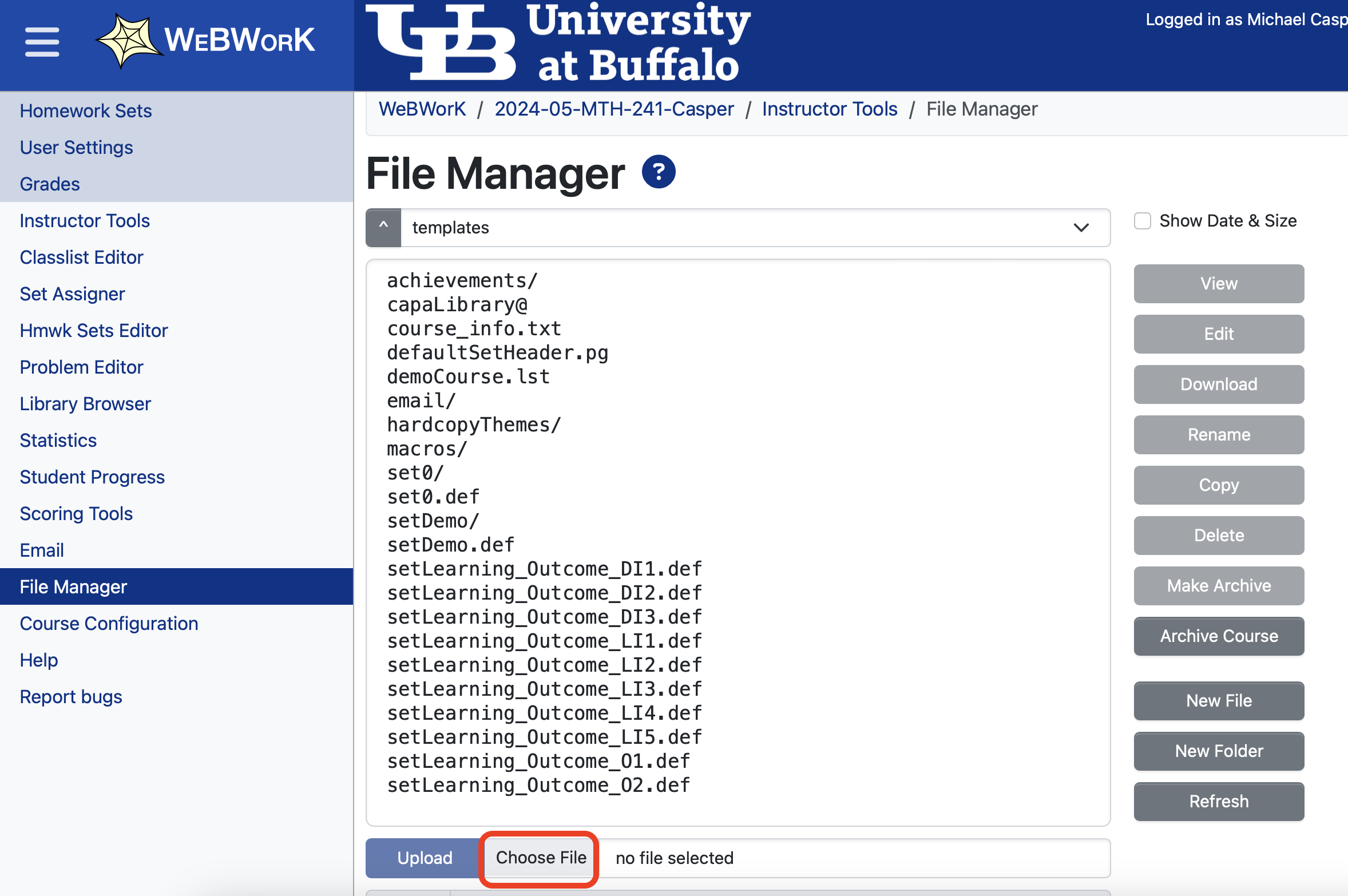
Under the Instructor Tools Menu, select File Manager.
Click Choose File, which will open a file explorer window on your computer.
Select the package file you just downloaded.
Click the upload button on WeBWorK.
Repeat the same steps for the set package. (Note that you can only upload one file at a time on webwork.)
File Manager View
Import the Homework Sets#
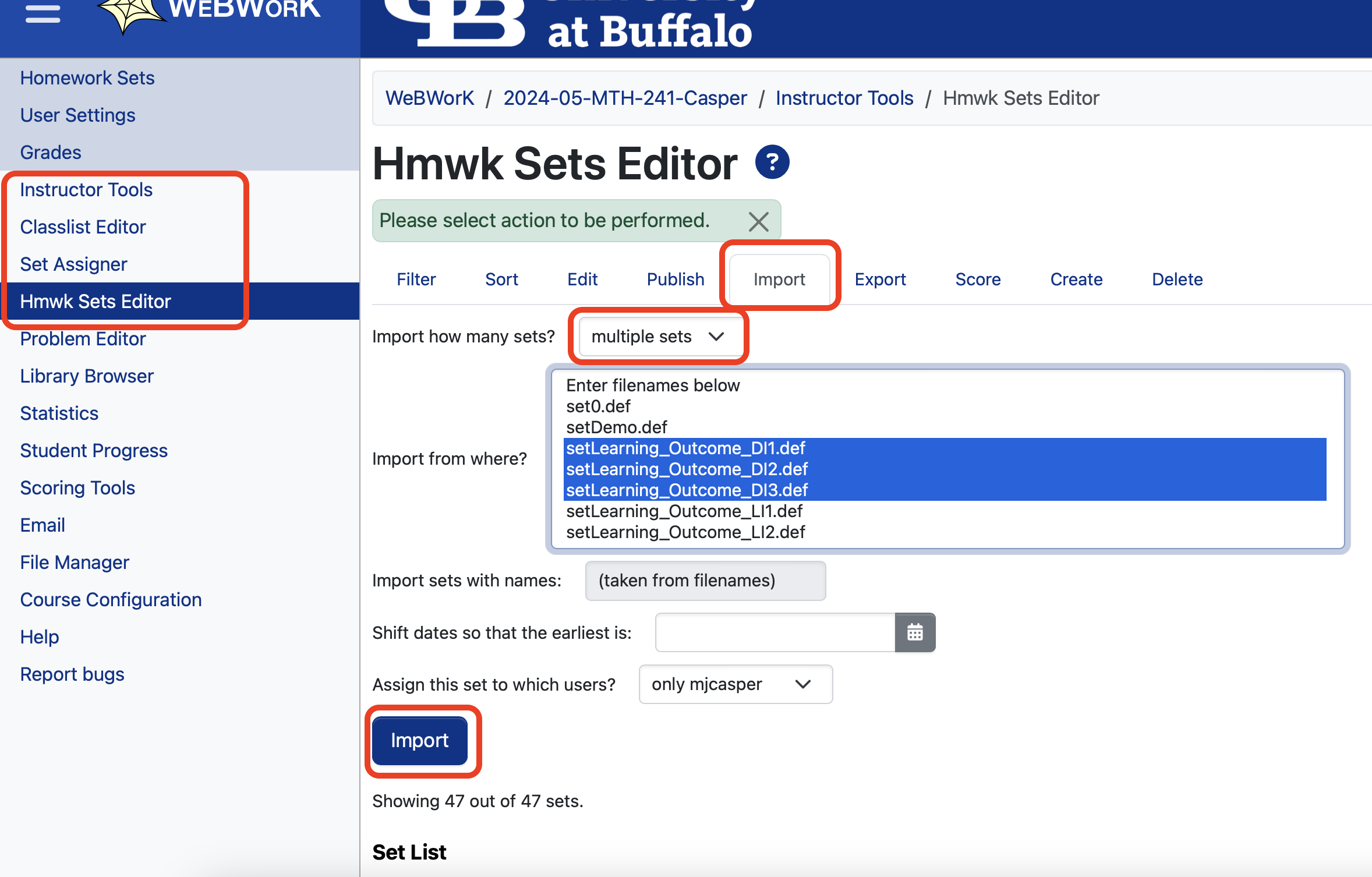
Next you need to import the homework sets using the Homework Sets Editor. This step is what actually makes the set something that can later be assigned to students.
Under the Instructor Tools Menu, select Homework Sets Editor
Select the Import tab
Change the drop down to import “Multiple Sets”
Select the sets from the list you would like to import.
Use Shift + click or ctrl + click to select multiple items at once on the list.
Click the import button.
Import Homework Sets View